 Back to Home
How to Change Aspect Ratio on the BetaFPV VR04 Goggles
Contrary to earlier reports, newer BetaFPV VR04 Analog Goggles firmware allows you to switch between 16:9 and 4:3 aspect ratios. Earlier firmware versions did not include this option. This short article explains how to change the aspect ratio on your goggles.
How to change the aspect ratio
- Turn your VR04 analog goggles on.
- Ensure your drone is connected and you see the video feed.
- Press and hold the 5D button backwards for about three seconds.
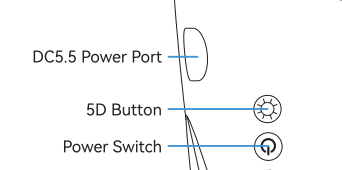
5D multi functional button on the VR04 Analog Goggles.
- A settings screen shows up in your goggles.
- Use the 5D button to navigate down to the “Scale” option. Move left/right to switch the setting between 16:9 and 4:3 aspect ratio.
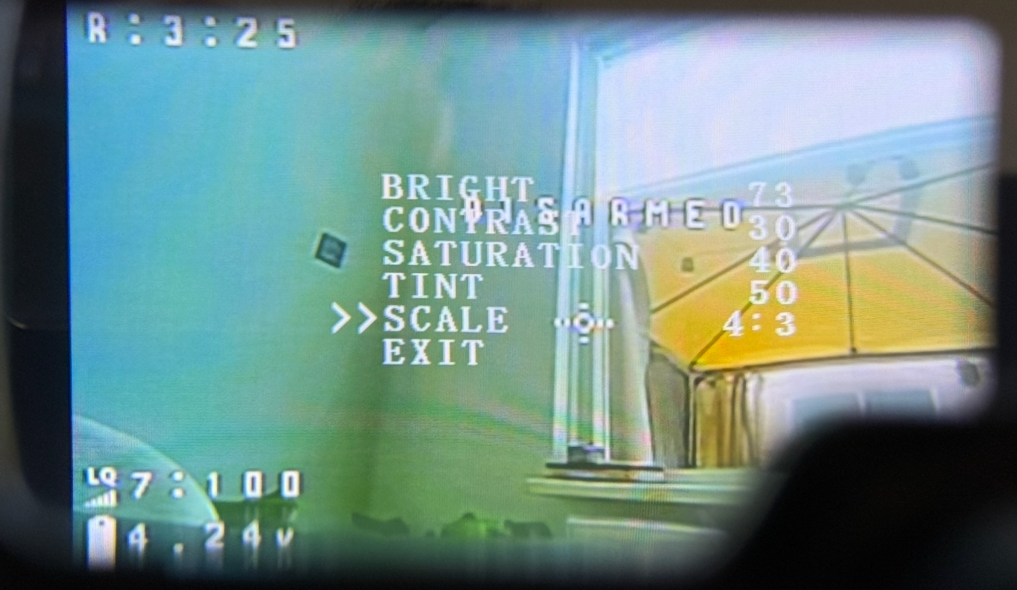
Updating the scale setting in the settings screen.
- Select “Exit” to close the settings screen.
Updating the firmware
My VR04 Analog Goggles arrived with this firmware preinstalled (delivered on 4 July 2026).
At the time of writing, BetaFPV has not published an official firmware update procedure for the VR04 Analog Goggles. Firmware update documentation is only available for the HD version.
After contacting BetaFPV, they confirmed that firmware updates cannot be performed by end users. According to BetaFPV, updating the firmware requires a dedicated programmer that is not available to customers. As a result, there is currently no official method to update the firmware on the VR04 Analog Goggles.
Official reply from BetaFPV:
“I’m sorry, the simulated version VR04 goggles can only have their firmware updated through a dedicated programmer, so regular users cannot update the firmware on their own. But I will provide this feedback to our R&D department to see what they think.”